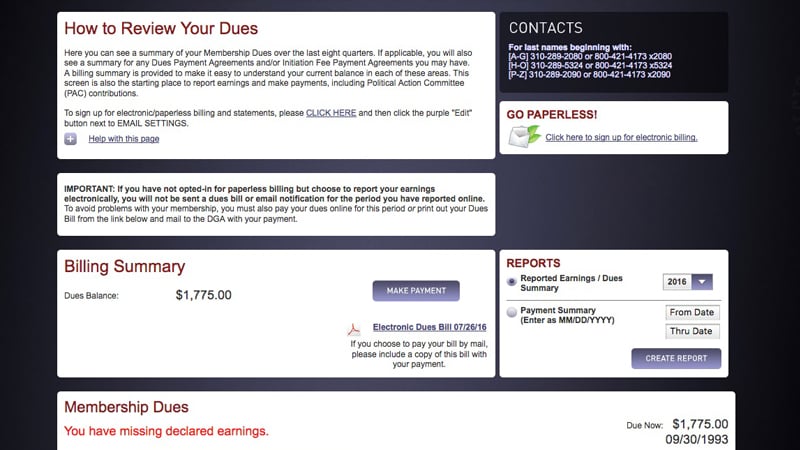
Below is a step-by-step guide to one of www.dga.org's most requested services, the ablility to report earnings and pay dues online.
*This page has been updated since its publish date to reflect changes and improvements to the online payment process.*
Geting into Your Online Account:

Your online account is a high security area available only to you and it provides access to a number of Guild services. The menu controlling access to these pages is located at the very top of the site, but only visible after you log in as a member. To log-in simply click the gold button that says "MEMBER SIGN IN" in the upper right hand corner use your DGA website credentials to log in. From there you can login and reset your username and/or password if you have forgotten your credentials. Once you have successfully logged in as a member, your personal DGA account menu bar will appear at the top of the screen. If you have any trouble logging in, you can call Web Support at (310) 289-2082.
Your Earnings & Dues Information:
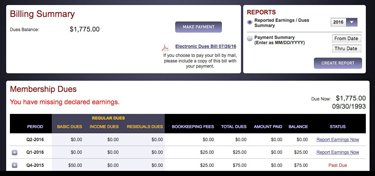
Click the "Dues" link in your DGA account menu. The dues page is broken into several sections, with basic instructions, help language and contact information for your dues representative at the top of the screen. Beneath that, you will see a streamlined "Billing Summary" section, which provides an at-a-glance view of your applicable balance(s), as well as a "Make Payment" button that leads you to our payment gateway.
Beneath the "Billing Summary" section you will see the "Membership Dues" section, which contains a grid with quarter-by-quarter details of your membership dues. If you currently are on a dues payment agreement (PA) or initiation fee payment agreement (IFPA), you will see similar sections beneath the "Membership Dues" section for these applicable agreement(s). Please note that by clicking the "+" expansion button in front of any row in these sections that you can drill deeper into the details for that period. For instance, in the "Membership Dues" section, if you expand the row for a given quarter, you can see details about the dues types, check numbers and more. In fact, you can even click on your check number to see detailed information about that check and how it was applied. If you paid your dues electronically, your check number will be your electronic payment number and be prefixed with "ACH".
Reporting Your Earnings:
On the "Membership Dues" grid, you will notice the column at the far right is titled "Status". If you have not reported earnings yet for a given quarter, the status will read, "Report Earnings Now". Clicking this link will take you to the "Report Earnings" screen for that quarter. Remember, you must report earnings for the oldest unreported quarter first, before you can report any more recent quarter (s).
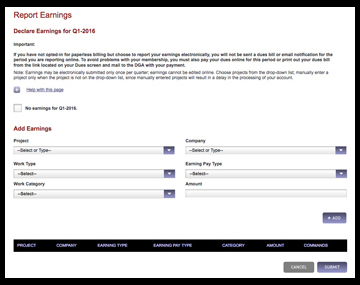
On the "Report Earnings" screen, you will see a checkbox to use if you are reporting no earnings. Clicking this checkbox will take you to a verification screen where you must attest to the accuracy of your submission. Once that is done by clicking the checkbox, click the "Report Earnings" button to confirm. You will then be returned to the main "Dues" page where you can pay your bill.
If you have earnings to report, there are several pull-down and data entry boxes to enter your information, including: Project, Company, Work Type, Earning Pay Type, Work Category and Amount Earned (in that quarter) . We have pre-populated your more recent projects from our internal data system into the project pull-down box for you. Please use the pull-down to choose your project(s) from this pre-populated information whenever possible. By doing this, the website will auto-populate the appropriate company and work type information for you. Plus, if you stick to the projects in the pre-populated list, it allows our dues billing system to auto-update your dues information without staff intervention when your reporting is complete. However, if a project you worked on is not on the pre-populated list, you must type it into the project field. You will have to add the company and work type manually for that project as well. After completing all data for your entry, click the "+Add" button to register the earnings information for that project. That project's inforation will then appear in the grid below. Then repeat these steps for all projects you have earnings on in that quarter. Once all your projects are added, click the "Submit" button at the bottom of the screen. This will take you to a verification screen where you must attest to the accuracy of your submission. Once that is done by clicking the checkbox, click the "Report Earnings" button to confirm. You will then be returned to the main "Dues" page where you can pay your bill.
Making A Dues Payment:
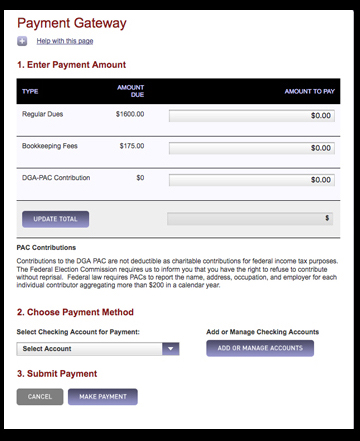
a payment method and/or pay your dues online.
Once your earnings have processed (this can be instantaneous you report no earnings or your earnings all come from companies and shows that existed in your history; if you are reporting earnings from a new employer, it may take several days to process), or you have an outstanding balance, you can pay your bill electronically from the main "Dues" page. In the "Billing Summary" section of the "Dues" screen, you will a link to download a PDF of your Dues Bill, and you can pay that bill by clicking "Make Payment." That will open the Payment Gateway, which contains three steps. The first section allows you to fill in payment amounts for your applicable balance(s) and also allows you to make an optional DGA Political Action Committee (PAC) contribution. You can see your total payment by clicking "Update Total," which is especially useful if you are making payments for multiple items.
The second section of the Payment Gateway allows you to choose a payment account, if one has been previously established, by selecting it from the provided drop-down menu. Please note that the DGA website currently only accepts payments made from checking accounts from United States financial institutions. On your first visit, you will have to click "Add or Manage Accounts" to set up your payment account(s) – providing information including the type of account it is (i.e. personal or business), routing number and account number. Remember, if you wish to make a contribution to the DGA PAC – whether that payment is a "stand alone" contribution payment or you wish to add it as a line item of a larger dues payment – you must make that payment from a personal (non-business) checking account and you must agree to the "PAC Contributions" statement when establishing that personal checking account.
Once you have entered your payment amounts and selected a payment method, simply click the "Make Payment" button and follow the confirmation prompts. When your payment has been successfully submitted you will receive a confirmation message and number. Returning to the dues screen, you will see your payment has been applied to your balance(s) and is now reflected in your dues and/or payment agreement details.
Still Have Questions?
If you still have questions about the dues payment process please contact your Membership Rep using the information on your dues page. If you need assistance logging onto the site please contact DGA Web Support at (310) 289-2082 or via email at dgawebsupport@dga.org .